> ## Documentation Index
> Fetch the complete documentation index at: https://docs.nodi3d.com/llms.txt
> Use this file to discover all available pages before exploring further.
# Import/Export
> Description of your new file.
## Importing Geometry
You can import geometry into your project using the ImportGeometry node.
Supported file type:
| File Format | Description |
| ----------- | ------------------------------- |
| DXF (.dxf) | AutoCAD Drawing Exchange Format |
| SVG (.svg) | Scalable Vector Graphics |
| STL (.stl) | Standard Tessellation Language |
| OBJ (.obj) | Wavefront OBJ |
## Exporting Geometry
You can export geometry from the Property Panel.
Supported file type:
| Geometry Type | Supported File Formats |
| ------------- | ---------------------------------------------------------------------------------------------------------------- |
| Surface | STL (.stl)
OBJ (.obj)
GLTF (.gltf)
GLB (.glb)
PLY (.ply)
JSON (.json) |
| Curve | DXF (.dxf)
SVG (.svg)
JSON (.json) |
| Mesh | STL (.stl)
OBJ (.obj)
GLTF (.gltf)
GLB (.glb)
PLY (.ply)
JSON (.json) |
| Point | TXT (.txt) - Space separated
CSV (.csv) - Comma separated
TSV (.tsv) - Tab separated
JSON (.json) |
| Implicit | Use `ExportImplicitMesh` node to export as STL (.stl) |
## Exporting Project file
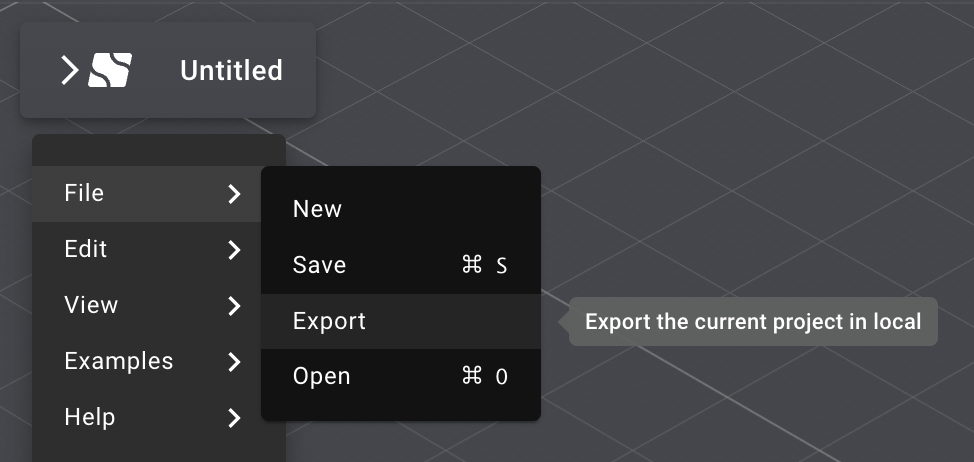 In Nodi, projects can be saved not only to the cloud but also locally as JSON files.
When working with files that involve heavy processing, we recommend frequently saving your project via the Export option.
In Nodi, projects can be saved not only to the cloud but also locally as JSON files.
When working with files that involve heavy processing, we recommend frequently saving your project via the Export option.